Help customers find your products in Vipps.
Let Shopping assistant show relevant products from your online store when people search and compare in Vipps.
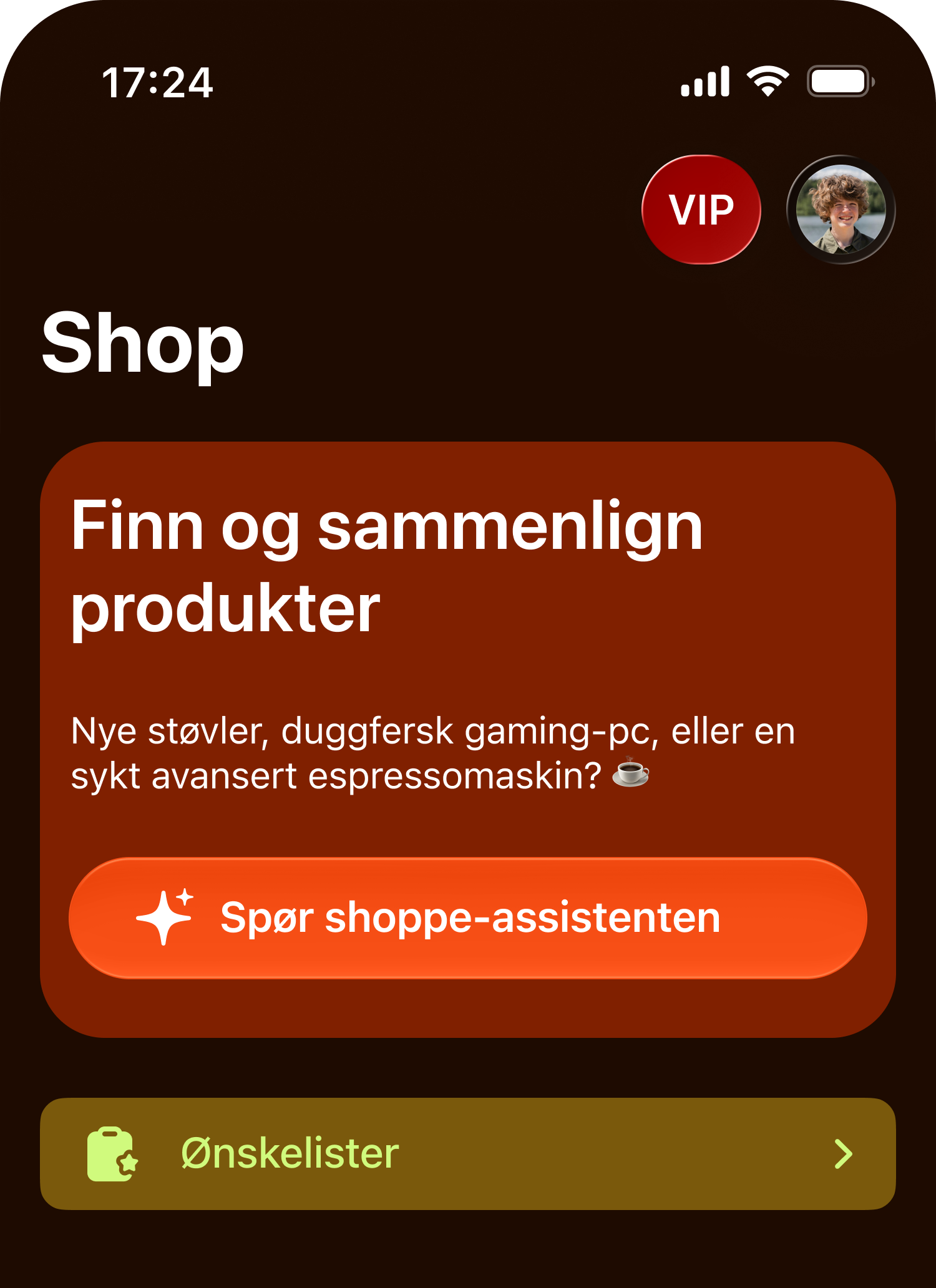
Connect your product feed
Share the URL of your Google-format product feed and a contact who knows the setup. We’ll check the data and agree when your products can appear.
Does your feed use an API key or token? Include it and tell us how to access the feed, for example which header to send the key in.
If you already have a contact at Vipps, you can also send them the URL.
Get your product feed ready
Your product feed must follow Google’s standard. We prefer an API so we can fetch up-to-date product data.
For Shopping assistant, each product must include the fields below. Only include sale_price when the item is on sale.
- id – A stable, unique ID for the product in your online store.
- gtin – The product’s valid GTIN. We normalise it to 14 digits.
- title – The product’s name.
- description – A description of the product and its features.
- google_product_category – The full category path from Google’s product categories.
- brand – The product’s brand.
- image_link – A URL for the main product image.
- link – A URL for the product in your online store.
- price – The regular price and currency, for example 499.00 NOK.
- sale_price – The sale price and currency. Include this field when the item is on sale, and leave it out otherwise.
- availability – Stock status: in_stock, out_of_stock, preorder or backorder. We only treat in_stock as available.
For items on sale, send both price (regular price) and sale_price (sale price). This lets Shopping assistant show the sale price with the regular price crossed out. Keep prices and stock status up to date.
Include more details if you can, especially colour (color), size and shipping. This makes it easier to find and recommend products that match what the customer is looking for.
See Google’s product data guide
Guides for your online store platform
An app or extension can help you create your product feed. Here are some examples:
- WooCommerce: set up Google Product Feed
- Shopify: create a Google product feed with Mulwi (third-party app)
- Adobe Commerce: create a product feed with Amasty (third-party extension)
Choose a Google template and check that it includes the fields above. Then share the URL and any access details in the form.
Get guidance
Not sure if you have a product feed or what you need? Leave your contact details and we’ll help you get started.